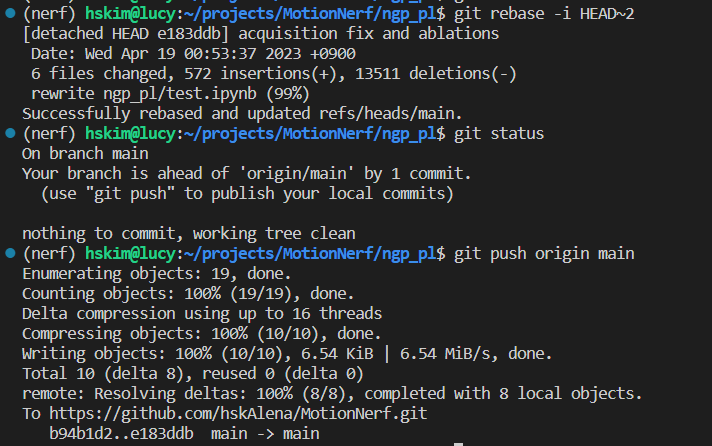
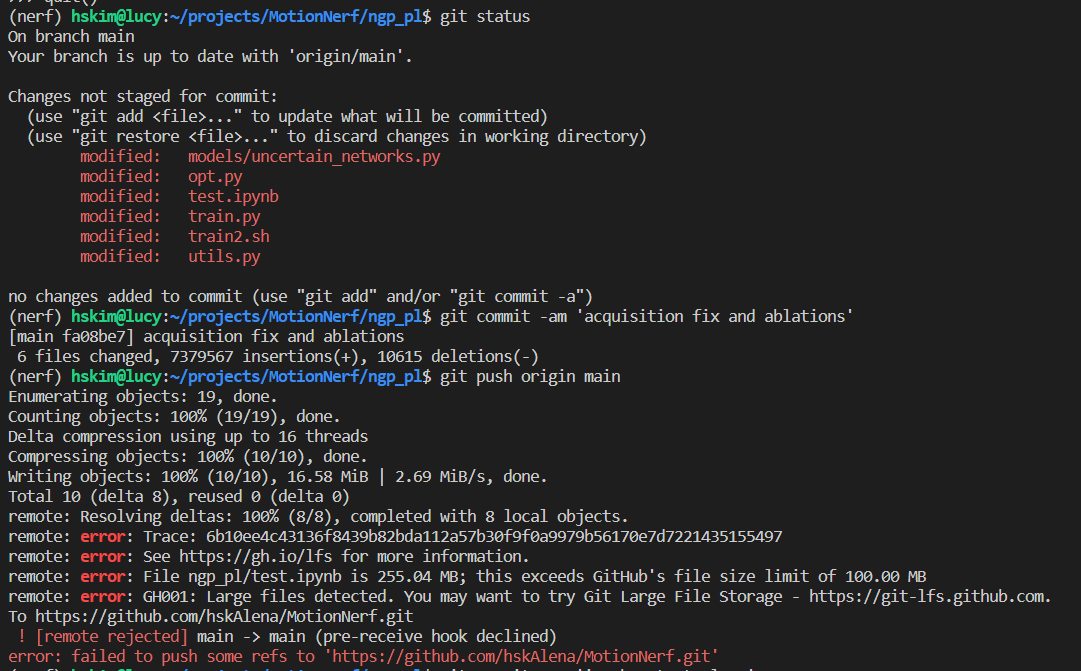
분명히 git status 로 이상한 파일이 올라가지 않는다는 것을 확인했는데도, ipynb output image 크기가 너무 커서 push 가 거절당했다. 

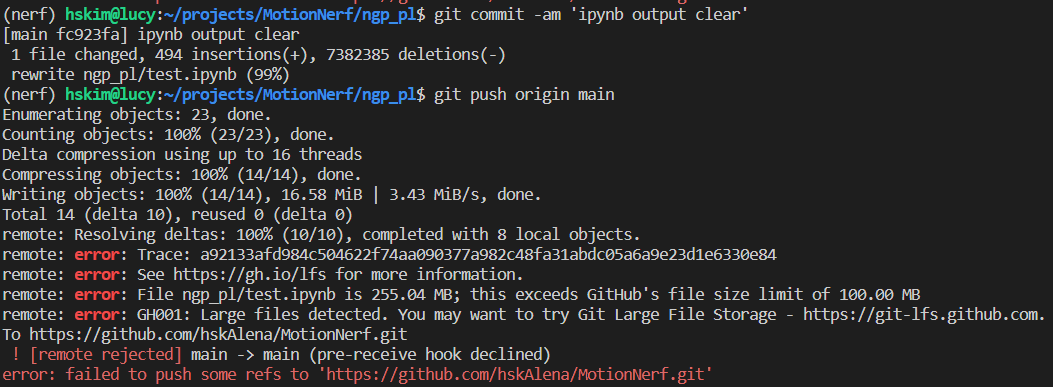
그러면, 일단 그 파일을 고치고 다시 commit을 한다. 그 상태로 다시 push하면 역시나 cache 에 이전 commit이 남아있기 때문에 또 거절을 당한다.

그러면 일단 기존 text editor는 nano이기 때문에 익숙한 vim으로 바꾸고 rebase를 진행해본다.

rebase 화면에는 두개의 commit이 나오는데, 둘중에 하나만 squash를 해야한다. 그런데 squash가 어떤건지 잘 모르니 실험적으로 첫번째 commit을 squash하고 두번째를 pick 했다. 그랬더니 첫번째 commit의 모든 정보가 날아감..^^ 침착하게 git rebase abort를 한다.

다시 rebase를 시도하고 이번엔 두번째 commit을 squash 하였다. 그랬더니 해피엔딩 ㅎㅎ

'Ubuntu and setups' 카테고리의 다른 글

tensorflow 1을 써야할때  (0) 2022.10.20
RLLab Setup & Miniconda setup  (0) 2022.10.20
ubuntu vim setup, git rebase 관련  (0) 2022.02.22
ubuntu disk usage by user  (0) 2021.08.11
ubuntu user 만들기  (0) 2021.07.31
import tensorflow.compat.v1 as tf

tf.disable_v2_behavior()


'Ubuntu and setups' 카테고리의 다른 글

git rebase 최종정리  (0) 2023.04.19
RLLab Setup & Miniconda setup  (0) 2022.10.20
ubuntu vim setup, git rebase 관련  (0) 2022.02.22
ubuntu disk usage by user  (0) 2021.08.11
ubuntu user 만들기  (0) 2021.07.31

1. Install Miniconda in silent mode

https://docs.anaconda.com/anaconda/install/silent-mode/


conda cheat sheet:

https://docs.conda.io/projects/conda/en/4.6.0/_downloads/52a95608c49671267e40c689e0bc00ca/conda-cheatsheet.pdf

https://interrupt.memfault.com/blog/conda-developer-environments


 2. edit bashrc

vim ~/.bashrc
export PATH=~/miniconda/bin:$PATH
source ~/.bashrc


 3. rllab 환경 세팅

conda init bash

터미널 한번 껐다가 킨다.

conda create -n rllab3 python=3.5.2 --channel conda-forge


4. 나머지는 sh 파일 만들어서 설치한다.

conda install -y -c anaconda numpy==1.12.1 scipy path.py python-dateutil mako ipywidgets flask h5py pandas scikit-learn
conda install -y -c numba numba
conda install -y -c cogsci pygame
conda install -y -c kne pybox2d
conda install -y -c menpo opencv3=3.1.0
conda install -y pytorch==1.0.0 torchvision==0.2.1 cuda100 -c pytorch
conda install -y mkl-service

<전제: cuda 10.x가 깔려있다>

 5. pip package 설치 전 확인

which python && python --version
echo $PATH

which pip 해서 /home/hskim/miniconda/envs/rllab3/bin/pip 나오면 다행. 아니면 specify 해줘서 pip package 설치하자. 안전하게 specify 도 괜찮고.


6. pip package 설치

(requirements.txt) 순서에 따라 깔렸던게 지워질 수도 있다. 그럴경우 추가로 깔아주기.

Pillow
atari-py
ipdb
boto3
PyOpenGL
nose2
pyzmq
tqdm
msgpack-python
line_profiler
redis
pyglet
prettytensor
jupyter
progressbar2
nibabel==2.1.0
pylru==1.0.9
hyperopt
mujoco-py==0.5.7
pip install -r https://raw.githubusercontent.com/Lasagne/Lasagne/master/requirements.txt
https://github.com/Lasagne/Lasagne/archive/master.zip
plotly
tensorflow-gpu==1.15
gym==0.7.4
matplotlib
mpi4py
Cython==0.22
chainer
cloudpickle
keras==1.2.1
polling
joblib==0.10.3
numpy-stl==2.2.0
cached_property
pyprind
imageio


<중간에 chainer 버전 때문에 nvcc 안되면 안된다길래 nvidia-cuda-toolkit 까는거 시도했다가 broken pipe 오류때문에 실패 -> 딱히 필수 아니래서 그냥 냅둠>

sudo apt-get autoremove
sudo apt-get --purge remove
sudo apt-get autoclean
sudo apt-get clean

이렇게 청소한거 같긴한데 잘 모르겠음.

https://askubuntu.com/questions/30993/fixing-software-center-catalog/183625#183625


LD_LIBRARY_PATH: /home/hskim/catkin_ws/devel/lib:/opt/ros/kinetic/lib:/opt/ros/kinetic/lib/x86_64-linux-gnu:/usr/local/cuda/lib64:/usr/lib/x86_64-linux-gnu


 7. aws를 쓸거면

awscli 도 깔자. 안쓰면 aws 관련 config 없애고 stub 도 없애도 되는듯. mode=mujoco-ec2 이것도 없애면 된다.


8. conda 환경 밖의 python package 안쓰는 법

참조: https://stackoverflow.com/questions/17386880/does-anaconda-create-a-separate-pythonpath-variable-for-each-new-environment

unset PYTHONPATH
conda activate (env_name)


9. python path 설정

참조: https://www.devdungeon.com/content/python-import-syspath-and-pythonpath-tutorial

export PYTHONPATH='/some/extra/path'
python -c "import sys; print(sys.path)"


Example output

['', '/some/extra/path', '/usr/lib/python2.7', '/usr/lib/python2.7/plat-x86_64-linux-gnu', '/usr/lib/python2.7/lib-tk', '/usr/lib/python2.7/lib-old', '/usr/lib/python2.7/lib-dynload', '/usr/local/lib/python2.7/dist-packages', '/usr/lib/python2.7/dist-packages']


Tried writing PYTHONPATH at .bashrc but highly error-


10. tf.compat.v1 으로 바꿔줘야한다는 것들 다 바꿔주기.

imitation_from_observation/rllab/sampler/base.py:116: The name tf.placeholder is deprecated. Please use tf.compat.v1.placeholder instead.
imitation_from_observation/nets/inception_utils.py:54: The name tf.GraphKeys is deprecated. Please use tf.compat.v1.GraphKeys instead.
imitation_from_observation/nets/inception_v3.py:475: The name tf.variable_scope is deprecated. Please use tf.compat.v1.variable_scope instead.
imitation_from_observation/gym/envs/mujoco/arm_shaping.py:25: The name tf.get_variable is deprecated. Please use tf.compat.v1.get_variable instead.
imitation_from_observation/rllab/sampler/base.py:139: The name tf.ConfigProto is deprecated. Please use tf.compat.v1.ConfigProto instead.
imitation_from_observation/rllab/sampler/base.py:141: The name tf.Session is deprecated. Please use tf.compat.v1.Session instead.
imitation_from_observation/rllab/sampler/base.py:144: The name tf.train.Saver is deprecated. Please use tf.compat.v1.train.Saver instead.

 11. user 변경

su cylee

<cuda ld library를 어떻게 연결할까> /usr/...?/cuda/bin whatever

By using ln operation, rename ld library link

https://linuxize.com/post/how-to-create-symbolic-links-in-linux-using-the-ln-command/

 12. tmux 연결

https://m.blog.naver.com/kimmingul/221339305735

13. Jupyter lab python path setting

14. Install VLC player to watch expert mp4 files


 15. LD library path (cuda 10.0) 바꿔주기

libcufft.so.10.0'; dlerror: libcufft.so.10.0: cannot open shared object file: No such file or directory;
2020-10-08 17:40:03.166569: W tensorflow/stream_executor/platform/default/dso_loader.cc:55] Could not load dynamic library 'libcurand.so.10.0'; dlerror: libcurand.so.10.0: cannot open shared object file: No such file or directory;
'libcusolver.so.10.0';
'libcusparse.so.10.0';
'Ubuntu and setups' 카테고리의 다른 글

git rebase 최종정리  (0) 2023.04.19
tensorflow 1을 써야할때  (0) 2022.10.20
ubuntu vim setup, git rebase 관련  (0) 2022.02.22
ubuntu disk usage by user  (0) 2021.08.11
ubuntu user 만들기  (0) 2021.07.31


sudo update-alternatives --config editor

해서 /usr/bin/vim.basic 을 선택하면 vim을 우분투 기본 text editor로 설정할 수 있다.

# Git rebase

git rebase -i HEAD~2

2개 이전의 commit을 볼 수 있다. vim으로 셋업해놨으면 고치기 쉬운데, i 눌러서 원하는 명령어로 고친 후에 :wq로 저장하면 된다. 보통 squash, drop, edit 등으로 고치면 된다.

# Git push하려고 했는데 large file error가 났을 때,

1. git rebase로 이전 commit을 drop 한다.
2. cached file을 지운다.

git rm --cached <file_name>

3. 이전 commit을 고친다.

git commit --amend -CHEAD

4. git push를 한다. --> 왜 git add +git commit을 안해도 되는지는 알 수 없지만,, 그것은 이번 경우에만 적용되는 것일수도..!

참조:

https://brtech.tistory.com/96


linux 기본 에디터 vim 설정하는 두가지 방법

우분투 설치하고 나서 기본으로 설정되는 에디터가 보통 vim tiny 이다. 다양한 편집옵션이나 색 옵션이 지원이 되지 않아 설정 파일을 편집하는데 어려움이 있다. 특히 svn 을 사용하는 환경에서 s

brtech.tistory.com

https://velog.io/@taelee/%EA%B3%BC%EA%B1%B0-%EC%BB%A4%EB%B0%8B-%EB%B0%94%EA%BE%B8%EA%B8%B0git-rebase-interactive


과거 커밋 바꾸기(git amend, rebase)

먼저 바꿀 파일이 있다면 모두 add한다.git commit --amend을 터미널에 입력하면 vim창이 뜨면서 커밋 내용이 뜨는데 거기에서 커밋 로그를 수정해서 ESC(입력모드에서 나오기)를 누르고 -> :wq(저장후 종

velog.io

https://stackoverflow.com/questions/19573031/cant-push-to-github-because-of-large-file-which-i-already-deleted

'Ubuntu and setups' 카테고리의 다른 글

tensorflow 1을 써야할때  (0) 2022.10.20
RLLab Setup & Miniconda setup  (0) 2022.10.20
ubuntu disk usage by user  (0) 2021.08.11
ubuntu user 만들기  (0) 2021.07.31
git config temporal username  (0) 2021.07.14

'Ubuntu and setups' 카테고리의 다른 글

RLLab Setup & Miniconda setup  (0) 2022.10.20
ubuntu vim setup, git rebase 관련  (0) 2022.02.22
ubuntu user 만들기  (0) 2021.07.31
git config temporal username  (0) 2021.07.14
mount disk in ubuntu + conda pip errors  (0) 2021.07.05
sudo adduser newuser
sudo usermod -aG sudo newuser

1. anaconda 설치

https://hskalena.github.io/installment/RLlab-ExperimentSetup/

2. mujoco 설치

3. git 파일들 받기


'Ubuntu and setups' 카테고리의 다른 글

ubuntu vim setup, git rebase 관련  (0) 2022.02.22
ubuntu disk usage by user  (0) 2021.08.11
git config temporal username  (0) 2021.07.14
mount disk in ubuntu + conda pip errors  (0) 2021.07.05
210504 NVIDIA CUDA installation  (0) 2021.05.04

https://stackoverflow.com/questions/22058041/commit-without-setting-user-email-and-user-name/32794854


Commit without setting user.email and user.name

I try to commit like this git commit --author='Paul Draper <my@email.org>' -m 'My commit message' but I get *** Please tell me who you are. Run git config --global user.email "you@examp...</my@email.org>

stackoverflow.com

git -c user.name='Paul Draper' -c user.email='my@email.org' commit -m '...'

이 방식대로 commit 했을 경우, pull, push 등 할때마다 -c 를 붙여줘야하기 때문에, 사실 alias를 등록해놓는것이 낫다.

'Ubuntu and setups' 카테고리의 다른 글

ubuntu disk usage by user  (0) 2021.08.11
ubuntu user 만들기  (0) 2021.07.31
mount disk in ubuntu + conda pip errors  (0) 2021.07.05
210504 NVIDIA CUDA installation  (0) 2021.05.04
vncserver setting, ssh 터널링 등  (0) 2021.01.25

https://seongkyun.github.io/others/2019/03/05/hdd_mnt/


ubuntu 추가 하드디스크 마운트 방법 · Seongkyun Han's blog

ubuntu 추가 하드디스크 마운트 방법 05 Mar 2019 | ubuntu hdd mount ubuntu 추가 하드디스크 마운트 방법 우분투가 설치된 하드디스크 외 추가 하드디스크 마운트 하는 방법에 대해 설명한다. 1. 하드디스

seongkyun.github.io

https://www.itenvoy.com/adding-a-new-drive-to-ubuntu-18-04lts/


Adding a New Drive to Ubuntu 18.04LTS - IT Envoy

It’s not every day that you add a new drive to your desktop or server.  And whilst adding a drive to Ubuntu with a GUI is relatively simple, adding a drive from the command line is …. well … pretty simple too actually.  You just have to know the co

www.itenvoy.com

conda activate 해도 which pip 했을 때 원래 환경꺼로 머물러 있는 경우 -  conda deactivate를 한 후 다시 activate 하면 된다.

Hard disk symbolic link:

cd /home/user
sudo ln -s /mnt /home/user
sudo chmod 777 mnt

https://github.com/conda/conda/issues/9392

'Ubuntu and setups' 카테고리의 다른 글

ubuntu disk usage by user  (0) 2021.08.11
ubuntu user 만들기  (0) 2021.07.31
git config temporal username  (0) 2021.07.14
210504 NVIDIA CUDA installation  (0) 2021.05.04
vncserver setting, ssh 터널링 등  (0) 2021.01.25

1. 먼저 nvidia-smi 와 nvcc -V를 해서 둘다 어떤 output도 나오지 않는 클린한 상태를 만들자. 

sudo dpkg -l | grep nvidia
sudo dpkg -l | grep cuda

위 명령어로 잔여 프로그램이 남아있는지를 확인할 수 있고,
지울땐 여러가지 방법이 있지만 밑과 같이 지울 수 있다. <> 괄호 안을 자유자재로 바꿔서 원하는걸 삭제하면 된다.
혹시라도 cuda repository가 남아있는지를 확인하기 위해서 폴더 안으로도 가서 확인하는게 좋다.

sudo apt-get remove --purge <libnvidia-*> 
sudo rm -rf /usr/local/cuda*

https://settembre.tistory.com/447

다 지웠으면 nvidia driver 부터 설치한다. (nvidia-smi)를 위해서

여러가지 방법이 있지만, 나는 밑의 명령어로 어떤 버전 설치 가능한지 확인후에 대강 적절히 높은 숫자 정해서 설치하는 것을 선호한다.

sudo ubuntu-drivers devices
sudo apt-get install nvidia-driver-515

https://goodtogreate.tistory.com/entry/%EC%97%94%EB%B9%84%EB%94%94%EC%95%84NVIDIA-%EA%B7%B8%EB%9E%98%ED%94%BD-%EB%93%9C%EB%9D%BC%EC%9D%B4%EB%B2%84-%EC%9E%AC%EC%84%A4%EC%B9%98-%EB%B0%8F-%EC%97%85%EA%B7%B8%EB%A0%88%EC%9D%B4%EB%93%9C

그런다음에 컴퓨터를 껐다 켜야 nvidia-smi가 잘 작동한다.

nvcc -V를 위해서는 cuda-toolkit을 설치해야하는데, 기본으로 우분투 추천 명령어를 써도 무방하다. - 근데 그러면 가장 최신버전이 설치되므로, 원하는 버전이 있으면 cuda toolkit 버전 검색해서 깔면 된다. - pytorch나 어떤 라이브러리 쓰려면 거기에 적합한걸 설치하면 좋은데, 보통 그럴경우 최신보다는 좀 전의 버전을 깔아야한다.

sudo apt install nvidia-cuda-toolkit

https://linuxconfig.org/how-to-install-cuda-on-ubuntu-20-04-focal-fossa-linux

그런다음에 .bashrc에 path 설정해주면 완료!
official 사이트에서는 run 파일보다 deb 파일 설치를 더 추천한다고 한다! deb 파일이 더 specific 한거여서, 가능하다면 그걸 설치하라고.. 

vim ~/.bashrc
export LD_LIBRARY_PATH=/usr/local/cuda-12.0/lib64\
                         ${LD_LIBRARY_PATH:+:${LD_LIBRARY_PATH}}
export PATH=/usr/local/cuda-12.0/bin${PATH:+:${PATH}}

https://docs.nvidia.com/cuda/cuda-installation-guide-linux/index.html#post-installation-actions

forums.developer.nvidia.com/t/nvidia-driver-and-cuda-installation-sequence/60456


'Ubuntu and setups' 카테고리의 다른 글

ubuntu disk usage by user  (0) 2021.08.11
ubuntu user 만들기  (0) 2021.07.31
git config temporal username  (0) 2021.07.14
mount disk in ubuntu + conda pip errors  (0) 2021.07.05
vncserver setting, ssh 터널링 등  (0) 2021.01.25

1. Mujoco rendering 해결 (video를 찍지 않고 그냥 이미지 저장을 하기로)

github.com/openai/mujoco-py/issues/390

2. VNC 서버 세팅 (tight vnc server가 검은 screen 나오는게 해결이 안돼서 tiger vnc로 바꿈. viewer는 real vnc viewer 쓰는 중. 검은 screen은 dbus 관련 문제인 것 같으나 tiger vnc는 원래 모니터를 잘 켜놓기만 하면 문제없이 돌아가서 해결하지 않음)

z-wony.tistory.com/19


Ubuntu 18.04, 20.04 에서 VNC Server 설치하기

tightvnc를 줄곧 썼었는데, 언제부터인지 뜻대로 설정이 되지 않는걸 알았습니다. (잘쓰던게 갑자기 안된건 아니고, 제가 점점 Ubuntu 버젼을 올리면서 시행착오를 겪었습니다.) 설정하고 접속해보

z-wony.tistory.com

https://jjeongil.tistory.com/1332

두번째 포스트는 dbus를 이용하지 않고, xfce4를 이용했다는 점에서 위 포스트와 다르다. 둘 중 어느것이 더 안정적인지는 아직 알 수 없으나 첫번째 포스트는 시행착오가 많았다는 점에서, 두번째 포스트가 더 나은것 같기도!


Ubuntu 18.04 : VNC 설치 및 구성하는 방법, 예제, 명령어

이 가이드에서는 Ubuntu 18.04에 VNC 서버를 설치하고 구성하는 데 필요한 단계를 설명합니다. 또한 SSH 터널을 통해 VNC 서버에 안전하게 연결하는 방법도 알려드리겠습니다. VNC(Virtual Network Computing)

jjeongil.tistory.com

3. ubuntu port 관련

sudo lsof -i -P -n | grep LISTEN 이라고 하면 현재 열려있는 포트가 보이고, 잘못 연거는

kill -9 $PID 로 죽일 수 있다.

그리고 서버 텐서보드를 바로 연결할때는 

ssh -NfL $내ip:원하는포트:localhost:그쪽포트 $그쪽ip 이런식으로 치면 된다.

ex) ssh -NfL 147.46.00.00:1234:localhost:8889 zwh@147.46.11.11


4. zip 할때 -r 해야 밑의 폴더까지 다 zip 된다.


5. nvidia 관련 문제. 일단 keep

askubuntu.com/questions/1280589/usr-bin-nvidia-modprobe-unrecognized-option-s


/usr/bin/nvidia-modprobe: unrecognized option: "-s"

nvidia-smi /usr/bin/nvidia-modprobe: unrecognized option: "-s" ERROR: Invalid commandline, please run `/usr/bin/nvidia-modprobe --help` for usage information. /usr/bin/nvidia-modprobe:

askubuntu.com


'Ubuntu and setups' 카테고리의 다른 글

ubuntu disk usage by user  (0) 2021.08.11
ubuntu user 만들기  (0) 2021.07.31
git config temporal username  (0) 2021.07.14
mount disk in ubuntu + conda pip errors  (0) 2021.07.05
210504 NVIDIA CUDA installation  (0) 2021.05.04

+ Recent posts